> ## Documentation Index
> Fetch the complete documentation index at: https://docs.idun-group.com/llms.txt
> Use this file to discover all available pages before exploring further.
# Discord
> Connect your Idun agent to Discord so users can interact with it through slash commands.
Connect your Idun agent to Discord so users can interact with it through slash commands in any server.
## Prerequisites
* A running Idun agent (engine)
* A Discord account
* Your engine must be publicly reachable (use [ngrok](https://ngrok.com) for local development)
## Setup
Navigate to `/admin/integrations/` in the running standalone. The channel catalog shows WhatsApp, Discord, Google Chat, Slack, and Microsoft Teams as active channels.
Click **Discord** and fill in the form:
| Field | Value |
| ---------------- | ------------------------------------------------ |
| `bot_token` | Bot token from your Discord application |
| `application_id` | Application ID from the Discord Developer Portal |
| `public_key` | Public key from the Discord Developer Portal |
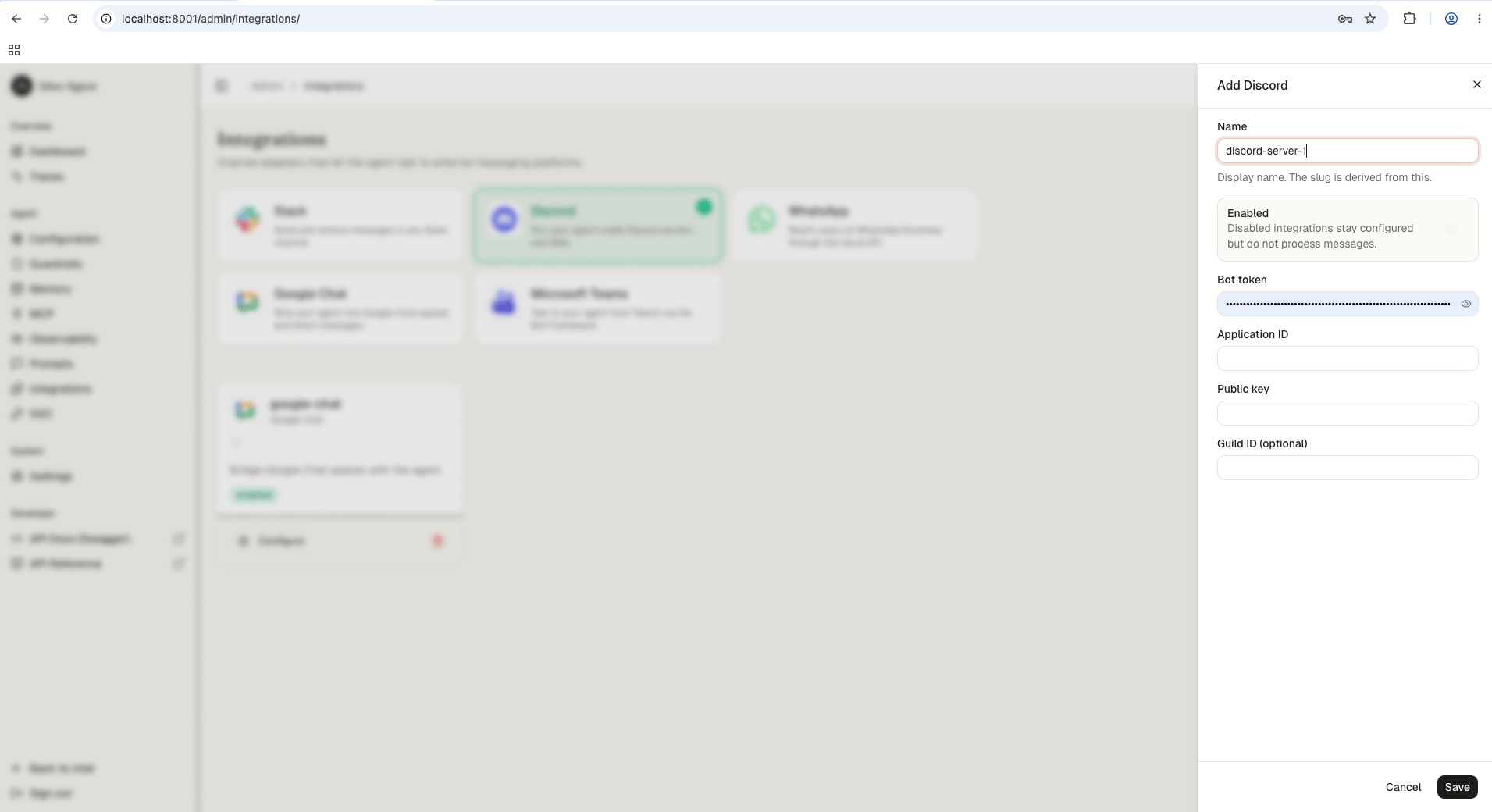 Save the form. The reload pipeline registers the Discord webhook handler on the running engine.
1. Go to the [Discord Developer Portal](https://discord.com/developers/applications)
2. Click **New Application** and give it a name
3. On the **General Information** page, copy the **Application ID** and **Public Key**
1. Go to the **Bot** tab
2. Click **Reset Token** to generate a **Bot Token**
3. Copy the token immediately (it is only shown once)
1. Go to **OAuth2 > URL Generator**
2. Select scopes: `bot`, `applications.commands`
3. Select bot permissions: `Send Messages`
4. Copy the generated URL, open it in your browser, and select your server
5. To get your **Guild ID**: enable Developer Mode in Discord settings (User Settings > Advanced > Developer Mode), then right-click your server name and select **Copy Server ID**
Add the Discord integration to your engine config:
```yaml config.yaml theme={"theme":{"light":"github-light","dark":"github-dark"}}
integrations:
- provider: "DISCORD"
enabled: true
config:
bot_token: "MTI..."
application_id: "123456789012345678"
public_key: "abcdef1234567890..."
guild_id: "987654321098765432"
```
| Field | Description |
| ---------------- | -------------------------------------------------------------------------------------------------------- |
| `bot_token` | Bot token from step 2 |
| `application_id` | Application ID from step 1 |
| `public_key` | Public key from step 1 (used for Ed25519 signature verification) |
| `guild_id` | (Optional) Your Discord server ID. If set, slash commands are scoped to this server and appear instantly |
1. Make sure your engine is running and publicly reachable
2. In the Discord Developer Portal, go to **General Information**
3. Set **Interactions Endpoint URL** to:
```
https:///integrations/discord/webhook
```
Discord sends a PING request to verify the endpoint. The engine handles this automatically.
Discord does not create commands automatically. Register them via the Discord API.
**Register a guild command** (appears instantly in your server):
```bash theme={"theme":{"light":"github-light","dark":"github-dark"}}
curl -X POST \
"https://discord.com/api/v10/applications/{APPLICATION_ID}/guilds/{GUILD_ID}/commands" \
-H "Authorization: Bot {BOT_TOKEN}" \
-H "Content-Type: application/json" \
-d '{
"name": "ask",
"description": "Ask the agent a question",
"options": [
{
"name": "query",
"description": "Your question",
"type": 3,
"required": true
}
]
}'
```
Replace `{APPLICATION_ID}`, `{GUILD_ID}`, and `{BOT_TOKEN}` with your values.
`"type": 3` means a STRING option. The engine extracts this as the query text sent to your agent.
To register a **global command** (available in all servers the bot is in), omit `/guilds/{GUILD_ID}` from the URL. Global commands can take up to 1 hour to appear.
1. Go to your Discord server
2. Type `/ask query: Hello`
3. The bot shows a "thinking..." indicator (deferred response), then replies with your agent's answer
## How it works
1. User sends `/ask query: ...` in Discord
2. Discord POSTs the interaction to your engine's webhook
3. Engine verifies the Ed25519 signature
4. Engine defers the response (Discord requires a reply within 3 seconds)
5. Engine invokes the agent asynchronously with the query text
6. Engine edits the deferred message with the agent's reply
**Session tracking**: The Discord user ID is used as the session ID, so conversation context is maintained per user.
**Message limit**: Discord messages are capped at 2,000 characters. Longer replies are truncated.
## Next steps
Connect your agent to Slack DMs and channels.
Reach the same agent through Bot Framework in Teams.
Secure the engine before exposing webhooks to the public internet.
Save the form. The reload pipeline registers the Discord webhook handler on the running engine.
1. Go to the [Discord Developer Portal](https://discord.com/developers/applications)
2. Click **New Application** and give it a name
3. On the **General Information** page, copy the **Application ID** and **Public Key**
1. Go to the **Bot** tab
2. Click **Reset Token** to generate a **Bot Token**
3. Copy the token immediately (it is only shown once)
1. Go to **OAuth2 > URL Generator**
2. Select scopes: `bot`, `applications.commands`
3. Select bot permissions: `Send Messages`
4. Copy the generated URL, open it in your browser, and select your server
5. To get your **Guild ID**: enable Developer Mode in Discord settings (User Settings > Advanced > Developer Mode), then right-click your server name and select **Copy Server ID**
Add the Discord integration to your engine config:
```yaml config.yaml theme={"theme":{"light":"github-light","dark":"github-dark"}}
integrations:
- provider: "DISCORD"
enabled: true
config:
bot_token: "MTI..."
application_id: "123456789012345678"
public_key: "abcdef1234567890..."
guild_id: "987654321098765432"
```
| Field | Description |
| ---------------- | -------------------------------------------------------------------------------------------------------- |
| `bot_token` | Bot token from step 2 |
| `application_id` | Application ID from step 1 |
| `public_key` | Public key from step 1 (used for Ed25519 signature verification) |
| `guild_id` | (Optional) Your Discord server ID. If set, slash commands are scoped to this server and appear instantly |
1. Make sure your engine is running and publicly reachable
2. In the Discord Developer Portal, go to **General Information**
3. Set **Interactions Endpoint URL** to:
```
https:///integrations/discord/webhook
```
Discord sends a PING request to verify the endpoint. The engine handles this automatically.
Discord does not create commands automatically. Register them via the Discord API.
**Register a guild command** (appears instantly in your server):
```bash theme={"theme":{"light":"github-light","dark":"github-dark"}}
curl -X POST \
"https://discord.com/api/v10/applications/{APPLICATION_ID}/guilds/{GUILD_ID}/commands" \
-H "Authorization: Bot {BOT_TOKEN}" \
-H "Content-Type: application/json" \
-d '{
"name": "ask",
"description": "Ask the agent a question",
"options": [
{
"name": "query",
"description": "Your question",
"type": 3,
"required": true
}
]
}'
```
Replace `{APPLICATION_ID}`, `{GUILD_ID}`, and `{BOT_TOKEN}` with your values.
`"type": 3` means a STRING option. The engine extracts this as the query text sent to your agent.
To register a **global command** (available in all servers the bot is in), omit `/guilds/{GUILD_ID}` from the URL. Global commands can take up to 1 hour to appear.
1. Go to your Discord server
2. Type `/ask query: Hello`
3. The bot shows a "thinking..." indicator (deferred response), then replies with your agent's answer
## How it works
1. User sends `/ask query: ...` in Discord
2. Discord POSTs the interaction to your engine's webhook
3. Engine verifies the Ed25519 signature
4. Engine defers the response (Discord requires a reply within 3 seconds)
5. Engine invokes the agent asynchronously with the query text
6. Engine edits the deferred message with the agent's reply
**Session tracking**: The Discord user ID is used as the session ID, so conversation context is maintained per user.
**Message limit**: Discord messages are capped at 2,000 characters. Longer replies are truncated.
## Next steps
Connect your agent to Slack DMs and channels.
Reach the same agent through Bot Framework in Teams.
Secure the engine before exposing webhooks to the public internet.