> ## Documentation Index
> Fetch the complete documentation index at: https://docs.idun-group.com/llms.txt
> Use this file to discover all available pages before exploring further.
# Slack
> Connect your Idun agent to Slack so users can interact with it through direct messages and channel messages.
Connect your Idun agent to Slack so users can interact with it through direct messages or channel messages.
## Prerequisites
* A running Idun agent (engine)
* A [Slack](https://slack.com) workspace where you have permission to install apps
* Your engine must be publicly reachable (use [ngrok](https://ngrok.com) for local development)
## Setup
Navigate to `/admin/integrations/` in the running standalone. The channel catalog shows WhatsApp, Discord, Google Chat, Slack, and Microsoft Teams as active channels.
Click **Slack** and fill in the bot token and signing secret.
| Field | Value |
| ---------------- | ----------------------------------------------------- |
| `bot_token` | Bot User OAuth Token from your Slack app (`xoxb-...`) |
| `signing_secret` | Signing secret from your Slack app |
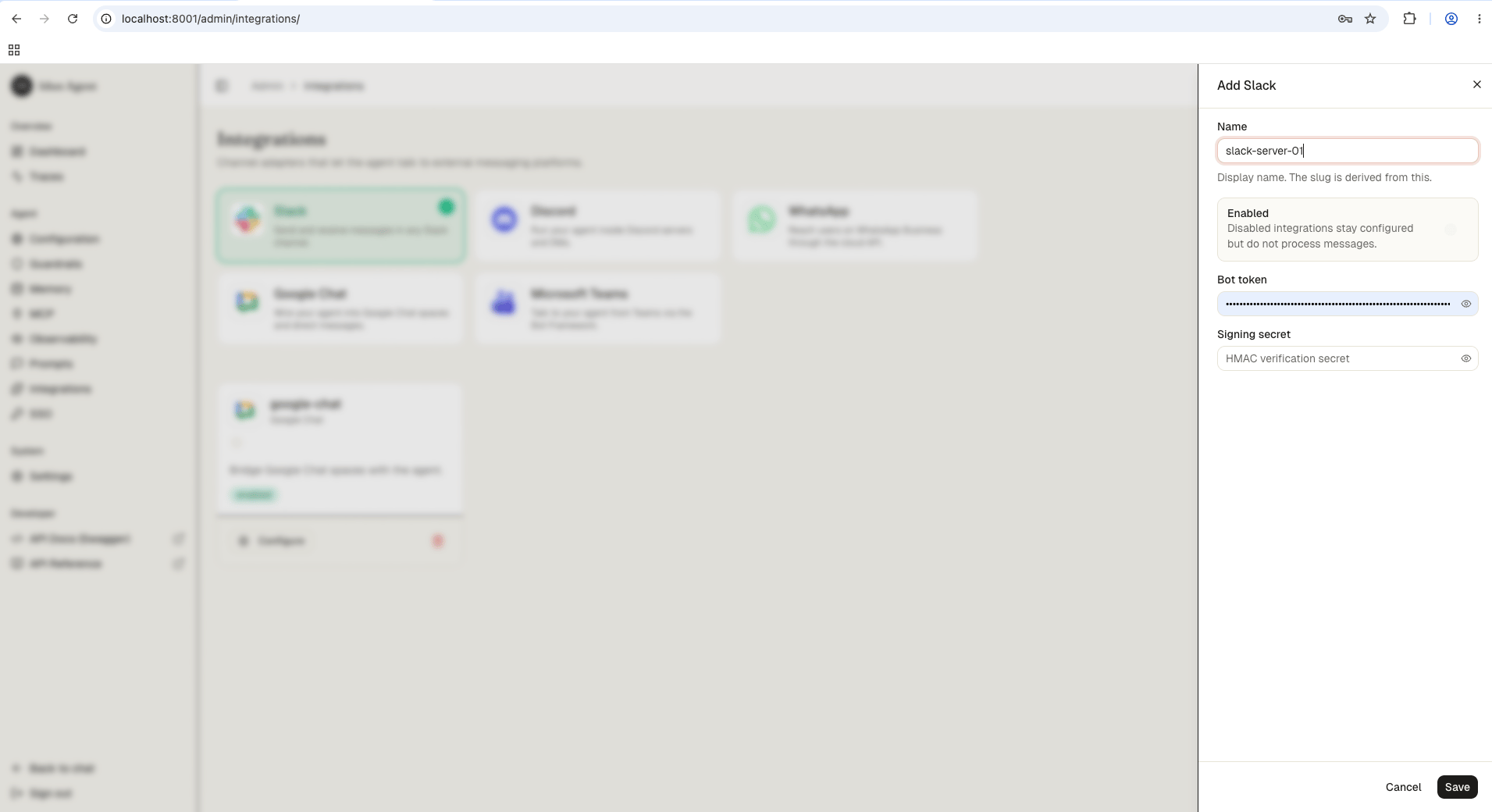 Save the form. The reload pipeline registers the Slack webhook handler on the running engine; the agent now responds to messages forwarded by Slack.
1. Go to the [Slack API Portal](https://api.slack.com/apps)
2. Click **Create an App** > **From scratch**
3. Give it a name and select your workspace
1. Go to **Basic Information** > **App Credentials** > copy the **Signing Secret**
2. Go to **OAuth & Permissions** > under **Bot Token Scopes**, add:
* `chat:write` (send messages)
* `channels:read` (view basic channel info)
3. Click **Install to Workspace** > **Allow**
4. Copy the **Bot User OAuth Token** (`xoxb-...`)
Add the Slack integration to your engine config:
```yaml config.yaml theme={"theme":{"light":"github-light","dark":"github-dark"}}
integrations:
- provider: "SLACK"
enabled: true
config:
bot_token: "xoxb-..."
signing_secret: "abc123..."
```
| Field | Description |
| ---------------- | ---------------------------------------------------------------------- |
| `bot_token` | Bot User OAuth Token from step 2 (`xoxb-...`) |
| `signing_secret` | Signing secret from step 2 (used for HMAC-SHA256 request verification) |
1. Make sure your engine is running and publicly reachable
2. In the Slack API Portal, go to **Event Subscriptions** > toggle **ON**
3. Set **Request URL** to:
```
https:///integrations/slack/webhook
```
Slack sends a `url_verification` challenge. The engine handles this automatically. You should see a green **Verified** checkmark.
4. Under **Subscribe to bot events**, add:
* `message.im` (messages in direct conversations with the bot)
* `message.channels` (messages in channels the bot is a member of)
5. Click **Save Changes**
If you see a yellow banner saying "You've changed the permission scopes. Please reinstall your app", click the reinstall link. Events are not delivered until you reinstall.
1. Go to **App Home** in the sidebar
2. Under **Show Tabs**, enable the **Messages Tab**
3. Check **"Allow users to send Slash commands and messages from the messages tab"**
If you want the bot to respond in channels (not only DMs):
* Go to the channel in Slack and type `/invite @YourBotName`
* Or click the channel name > **Integrations** tab > **Add an App**
1. Open Slack
2. Send a direct message to your bot, or post in a channel it has been invited to
3. Your agent processes the message and replies in the same conversation
## How it works
1. User sends a message to the bot (DM or channel)
2. Slack POSTs the event to your engine's webhook
3. Engine verifies the HMAC-SHA256 signature using the signing secret
4. Engine invokes the agent with the message text
5. Engine sends the agent's reply back via the Slack Web API (`chat.postMessage`)
**Session tracking**: The Slack user ID is used as the session ID, so conversation context is maintained per user.
**Bot messages ignored**: The handler skips messages with a `bot_id` to avoid infinite loops.
## Next steps
Connect your agent to a Discord server via slash commands.
Reach the same agent through Bot Framework in Teams.
Secure the engine before exposing webhooks to the public internet.
Save the form. The reload pipeline registers the Slack webhook handler on the running engine; the agent now responds to messages forwarded by Slack.
1. Go to the [Slack API Portal](https://api.slack.com/apps)
2. Click **Create an App** > **From scratch**
3. Give it a name and select your workspace
1. Go to **Basic Information** > **App Credentials** > copy the **Signing Secret**
2. Go to **OAuth & Permissions** > under **Bot Token Scopes**, add:
* `chat:write` (send messages)
* `channels:read` (view basic channel info)
3. Click **Install to Workspace** > **Allow**
4. Copy the **Bot User OAuth Token** (`xoxb-...`)
Add the Slack integration to your engine config:
```yaml config.yaml theme={"theme":{"light":"github-light","dark":"github-dark"}}
integrations:
- provider: "SLACK"
enabled: true
config:
bot_token: "xoxb-..."
signing_secret: "abc123..."
```
| Field | Description |
| ---------------- | ---------------------------------------------------------------------- |
| `bot_token` | Bot User OAuth Token from step 2 (`xoxb-...`) |
| `signing_secret` | Signing secret from step 2 (used for HMAC-SHA256 request verification) |
1. Make sure your engine is running and publicly reachable
2. In the Slack API Portal, go to **Event Subscriptions** > toggle **ON**
3. Set **Request URL** to:
```
https:///integrations/slack/webhook
```
Slack sends a `url_verification` challenge. The engine handles this automatically. You should see a green **Verified** checkmark.
4. Under **Subscribe to bot events**, add:
* `message.im` (messages in direct conversations with the bot)
* `message.channels` (messages in channels the bot is a member of)
5. Click **Save Changes**
If you see a yellow banner saying "You've changed the permission scopes. Please reinstall your app", click the reinstall link. Events are not delivered until you reinstall.
1. Go to **App Home** in the sidebar
2. Under **Show Tabs**, enable the **Messages Tab**
3. Check **"Allow users to send Slash commands and messages from the messages tab"**
If you want the bot to respond in channels (not only DMs):
* Go to the channel in Slack and type `/invite @YourBotName`
* Or click the channel name > **Integrations** tab > **Add an App**
1. Open Slack
2. Send a direct message to your bot, or post in a channel it has been invited to
3. Your agent processes the message and replies in the same conversation
## How it works
1. User sends a message to the bot (DM or channel)
2. Slack POSTs the event to your engine's webhook
3. Engine verifies the HMAC-SHA256 signature using the signing secret
4. Engine invokes the agent with the message text
5. Engine sends the agent's reply back via the Slack Web API (`chat.postMessage`)
**Session tracking**: The Slack user ID is used as the session ID, so conversation context is maintained per user.
**Bot messages ignored**: The handler skips messages with a `bot_id` to avoid infinite loops.
## Next steps
Connect your agent to a Discord server via slash commands.
Reach the same agent through Bot Framework in Teams.
Secure the engine before exposing webhooks to the public internet.