> ## Documentation Index
> Fetch the complete documentation index at: https://docs.idun-group.com/llms.txt
> Use this file to discover all available pages before exploring further.
# Microsoft Teams
> Connect your Idun agent to Microsoft Teams as a Bot Framework bot so users can @mention it in channels and direct messages.
Connect your Idun agent to Microsoft Teams so users can interact with it through @mentions and direct messages. The integration is single-tenant: each deployment registers its own Microsoft app in its own Azure AD and runs its own engine against it.
## Prerequisites
* A running Idun agent (engine)
* An [Azure](https://portal.azure.com) tenant where you can register an application
* Your engine must be publicly reachable (use [ngrok](https://ngrok.com) or Bot Framework's tunnel for local development)
## Setup
Navigate to `/admin/integrations/` in the running standalone. The channel catalog shows WhatsApp, Discord, Google Chat, Slack, and Microsoft Teams as active channels.
Click **Microsoft Teams** and fill in the credentials from your Azure AD app registration.
| Field | Value |
| --------------- | ------------------------------------------------------------------------------- |
| `app_id` | Microsoft App ID (the Application/Client ID from the Azure AD app registration) |
| `app_password` | Client secret from the Azure AD app registration |
| `app_tenant_id` | Azure AD tenant ID that owns the app registration |
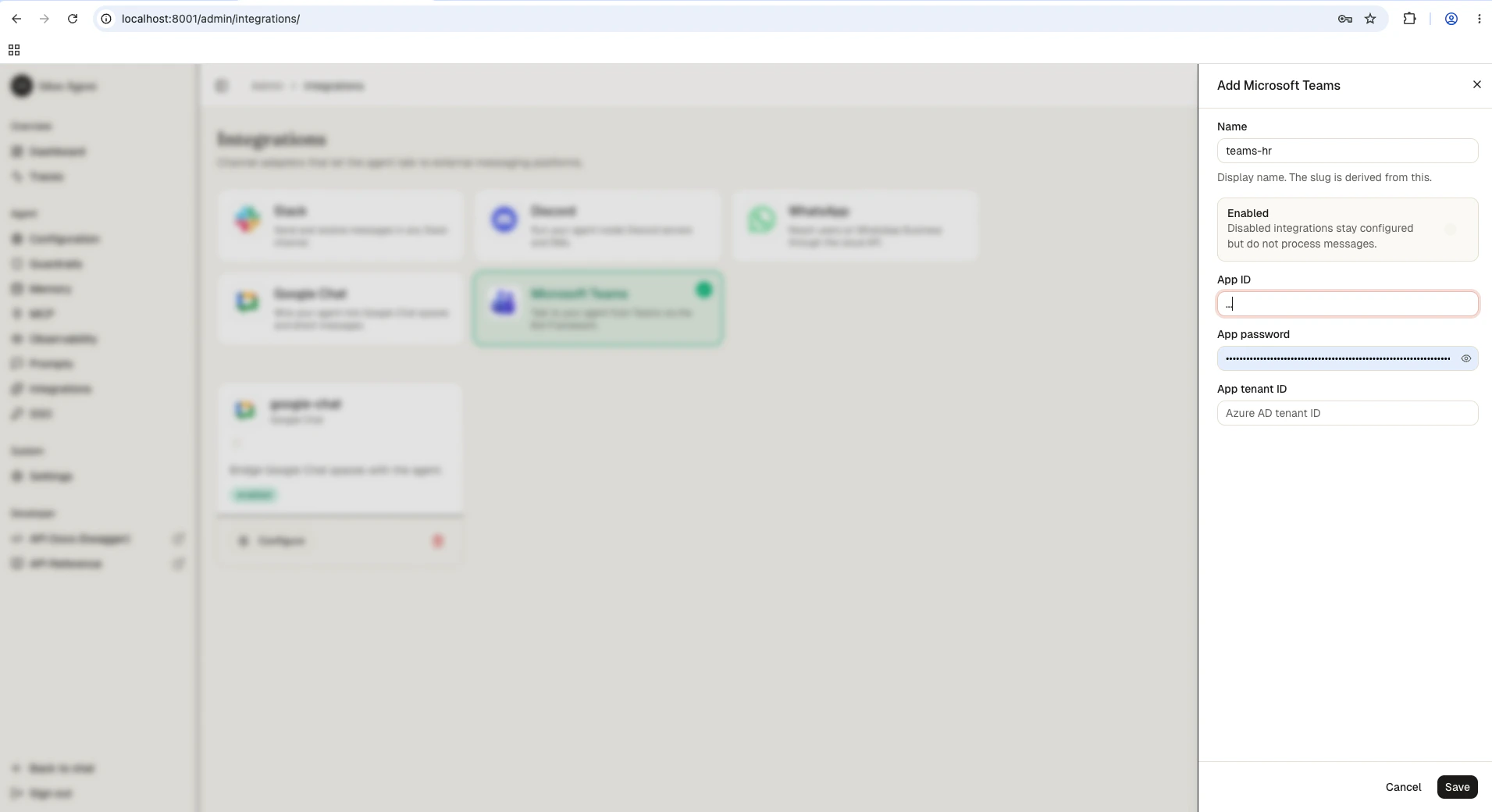 Save the form. The reload pipeline registers the Teams webhook handler on the running engine; the agent now responds to messages forwarded by the Bot Framework.
1. Open the [Azure portal](https://portal.azure.com) and go to **Microsoft Entra ID > App registrations**
2. Click **New registration**, give it a name, and choose **Single tenant**
3. From the overview page, copy the **Application (client) ID** and the **Directory (tenant) ID**
4. Open **Certificates & secrets > Client secrets**, click **New client secret**, and copy the **Value** (not the Secret ID) immediately — it's only shown once
Standard Teams bot messaging (`@mention` detection and replies) is handled by the Bot Framework channel and does not require Microsoft Graph application permissions. If your bot needs to receive every channel message (not only `@mentions`), declare Resource-Specific Consent (RSC) permissions in the Teams app manifest instead: `ChannelMessage.Read.Group` for channels or `ChatMessage.Read.Chat` for chats. Graph application permissions like `ChannelMessage.Read.All` are only needed for administrative or archival scenarios outside the bot's conversation context.
Add the Teams integration to your engine config:
```yaml config.yaml theme={"theme":{"light":"github-light","dark":"github-dark"}}
integrations:
- provider: "TEAMS"
enabled: true
config:
app_id: "00000000-0000-0000-0000-000000000000"
app_password: "${TEAMS_APP_PASSWORD}"
app_tenant_id: "11111111-1111-1111-1111-111111111111"
```
| Field | Description |
| --------------- | ---------------------------------------------------------- |
| `app_id` | Application (client) ID from the Azure AD app registration |
| `app_password` | Client secret value (not the secret ID) |
| `app_tenant_id` | Directory (tenant) ID that owns the app registration |
Authentication uses Bot Framework's `ConfigurationBotFrameworkAuthentication` with `MicrosoftAppType=SingleTenant` hardcoded. The integration does not currently support multi-tenant apps.
1. In the Azure portal, search for **Azure Bot** and click **Create**
2. Give the bot a handle, pick the resource group, and select **Use existing app registration** with the app ID from step 1
3. Once the bot is created, open **Channels** and add **Microsoft Teams**
4. Open **Configuration** and set the **Messaging endpoint** to:
```
https:///integrations/teams/messages
```
1. From the bot's **Channels > Microsoft Teams** page, follow the **Open in Teams** link
2. Install the app in a team or use it as a personal chat
3. @mention the bot in a channel, or DM it directly
## How it works
1. User sends a message in Teams (DM or @mention in a channel)
2. Bot Framework POSTs the activity to your engine's `/integrations/teams/messages` webhook
3. The engine validates the Bot Framework signature against the configured tenant + app credentials
4. The engine invokes the agent with the message text
5. The engine sends the agent's reply back through the Bot Framework adapter
**Session tracking**: the Teams user identifier is used as the session ID, so conversation context is maintained per user across messages.
## Next steps
Connect your agent to Slack DMs and channels.
Reach the same agent through Discord slash commands.
Secure the engine before exposing webhooks to the public internet.
Save the form. The reload pipeline registers the Teams webhook handler on the running engine; the agent now responds to messages forwarded by the Bot Framework.
1. Open the [Azure portal](https://portal.azure.com) and go to **Microsoft Entra ID > App registrations**
2. Click **New registration**, give it a name, and choose **Single tenant**
3. From the overview page, copy the **Application (client) ID** and the **Directory (tenant) ID**
4. Open **Certificates & secrets > Client secrets**, click **New client secret**, and copy the **Value** (not the Secret ID) immediately — it's only shown once
Standard Teams bot messaging (`@mention` detection and replies) is handled by the Bot Framework channel and does not require Microsoft Graph application permissions. If your bot needs to receive every channel message (not only `@mentions`), declare Resource-Specific Consent (RSC) permissions in the Teams app manifest instead: `ChannelMessage.Read.Group` for channels or `ChatMessage.Read.Chat` for chats. Graph application permissions like `ChannelMessage.Read.All` are only needed for administrative or archival scenarios outside the bot's conversation context.
Add the Teams integration to your engine config:
```yaml config.yaml theme={"theme":{"light":"github-light","dark":"github-dark"}}
integrations:
- provider: "TEAMS"
enabled: true
config:
app_id: "00000000-0000-0000-0000-000000000000"
app_password: "${TEAMS_APP_PASSWORD}"
app_tenant_id: "11111111-1111-1111-1111-111111111111"
```
| Field | Description |
| --------------- | ---------------------------------------------------------- |
| `app_id` | Application (client) ID from the Azure AD app registration |
| `app_password` | Client secret value (not the secret ID) |
| `app_tenant_id` | Directory (tenant) ID that owns the app registration |
Authentication uses Bot Framework's `ConfigurationBotFrameworkAuthentication` with `MicrosoftAppType=SingleTenant` hardcoded. The integration does not currently support multi-tenant apps.
1. In the Azure portal, search for **Azure Bot** and click **Create**
2. Give the bot a handle, pick the resource group, and select **Use existing app registration** with the app ID from step 1
3. Once the bot is created, open **Channels** and add **Microsoft Teams**
4. Open **Configuration** and set the **Messaging endpoint** to:
```
https:///integrations/teams/messages
```
1. From the bot's **Channels > Microsoft Teams** page, follow the **Open in Teams** link
2. Install the app in a team or use it as a personal chat
3. @mention the bot in a channel, or DM it directly
## How it works
1. User sends a message in Teams (DM or @mention in a channel)
2. Bot Framework POSTs the activity to your engine's `/integrations/teams/messages` webhook
3. The engine validates the Bot Framework signature against the configured tenant + app credentials
4. The engine invokes the agent with the message text
5. The engine sends the agent's reply back through the Bot Framework adapter
**Session tracking**: the Teams user identifier is used as the session ID, so conversation context is maintained per user across messages.
## Next steps
Connect your agent to Slack DMs and channels.
Reach the same agent through Discord slash commands.
Secure the engine before exposing webhooks to the public internet.