> ## Documentation Index
> Fetch the complete documentation index at: https://docs.idun-group.com/llms.txt
> Use this file to discover all available pages before exploring further.
# Arize Phoenix
> Set up Arize Phoenix observability to trace, evaluate, and troubleshoot your agents.
Set up Arize Phoenix to trace agent execution and view performance data in your Phoenix dashboard.
Before starting, complete the [quickstart guide](/quickstart) to have an agent running on Idun Engine.
## Set up Phoenix observability
1. Go to [Arize Phoenix](https://phoenix.arize.com)
2. Sign up or log in to your account
3. Create a new project or select an existing one
4. Note your **Project Name** and the **Collector Endpoint** (typically `https://collector.phoenix.com`)
If you are hosting Phoenix yourself, have your collector endpoint URL ready. This is the URL where your Phoenix instance accepts trace data.
Open the running standalone at `/admin/observability/` and click **Phoenix**. Fill in:
* **Collector endpoint**: URL of the Phoenix collector (e.g., `https://collector.phoenix.com` or your self-hosted URL)
* **Project name**: The project in Phoenix to bucket these traces under
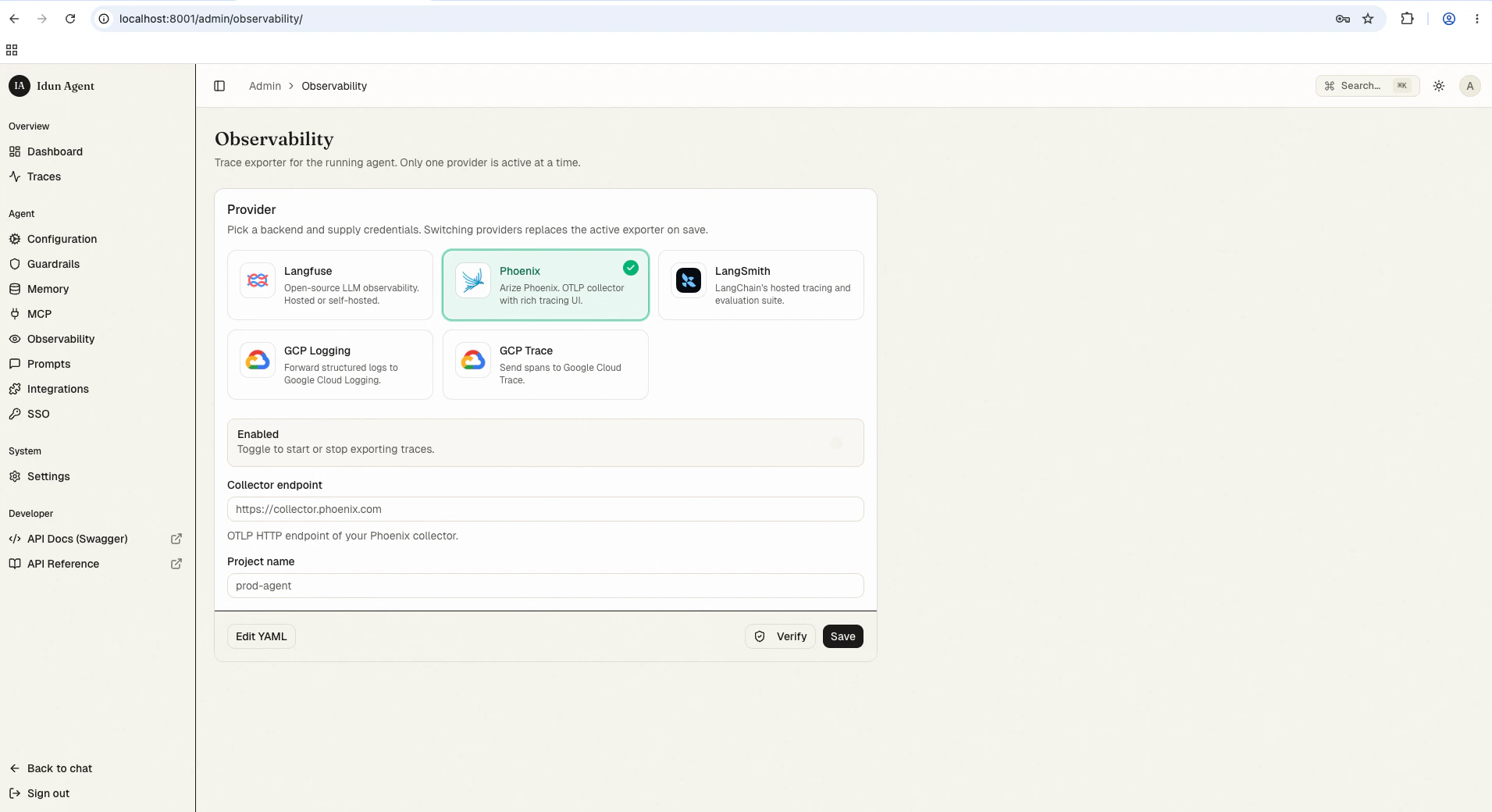 Save the form. The reload pipeline re-instantiates the engine with the new observability config; the next agent run starts streaming spans to Phoenix.
Alternatively, configure Phoenix in your `config.yaml` for first-boot seeding or engine-only mode:
```yaml config.yaml theme={"theme":{"light":"github-light","dark":"github-dark"}}
observability:
- provider: "PHOENIX"
enabled: true
config:
collector_endpoint: "https://collector.phoenix.com"
project_name: "idun-agent"
```
## View observability data
Once your agent is running with observability enabled:
1. Interact with your agent through the chat UI at `/` or the API at `/agent/run`
2. Open your Phoenix dashboard
3. Navigate to your project to view traces
You will see traces showing agent execution flows, tool usage, and latency data.
## Best practices
* Use descriptive names for observability configurations
* Monitor latency using Phoenix's performance tools
* Check traces regularly to understand agent behavior
## Troubleshooting
ADK does not currently support simultaneous tracing with multiple providers.
1. **Check collector endpoint**: Verify the URL is correct and accessible from the agent environment
2. **Verify project name**: Confirm it matches the project name in Phoenix exactly
3. **Check network**: Confirm your agent environment can reach the Phoenix collector
## Next steps
See the same agent runs in the bundled admin UI without extra config.
Compare built-in providers and their configuration shapes.
Wire a different OTel-compatible backend through Pattern B.
Save the form. The reload pipeline re-instantiates the engine with the new observability config; the next agent run starts streaming spans to Phoenix.
Alternatively, configure Phoenix in your `config.yaml` for first-boot seeding or engine-only mode:
```yaml config.yaml theme={"theme":{"light":"github-light","dark":"github-dark"}}
observability:
- provider: "PHOENIX"
enabled: true
config:
collector_endpoint: "https://collector.phoenix.com"
project_name: "idun-agent"
```
## View observability data
Once your agent is running with observability enabled:
1. Interact with your agent through the chat UI at `/` or the API at `/agent/run`
2. Open your Phoenix dashboard
3. Navigate to your project to view traces
You will see traces showing agent execution flows, tool usage, and latency data.
## Best practices
* Use descriptive names for observability configurations
* Monitor latency using Phoenix's performance tools
* Check traces regularly to understand agent behavior
## Troubleshooting
ADK does not currently support simultaneous tracing with multiple providers.
1. **Check collector endpoint**: Verify the URL is correct and accessible from the agent environment
2. **Verify project name**: Confirm it matches the project name in Phoenix exactly
3. **Check network**: Confirm your agent environment can reach the Phoenix collector
## Next steps
See the same agent runs in the bundled admin UI without extra config.
Compare built-in providers and their configuration shapes.
Wire a different OTel-compatible backend through Pattern B.